Platform-specific Configuration
This guide covers platform-specific setup requirements and configurations for the Runtime MetaHuman Lip Sync plugin.
Android / Meta Quest Configuration
If you're targeting Android or Meta Quest platforms and encounter build errors with this plugin, you'll need to disable the x86_64 (x64) Android architecture in your project settings:
- Go to Edit > Project Settings
- Navigate to Platforms > Android
- Under Platforms - Android, Build section, find Support x86_64 [aka x64] and ensure it's disabled, as shown below
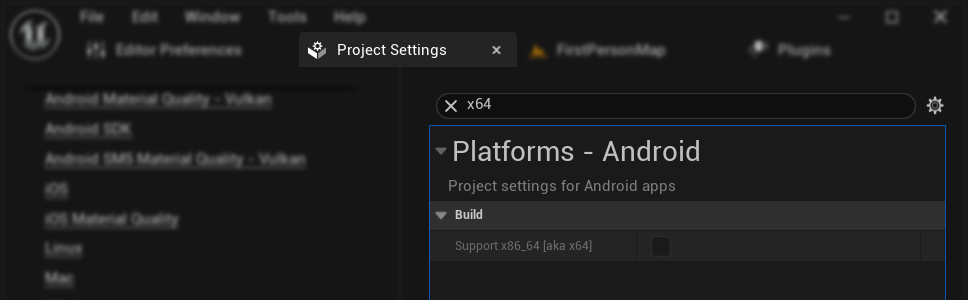
This is because the plugin currently only supports arm64-v8a and armeabi-v7a architectures for Android / Meta Quest platforms.
Android and iOS Crashes
In some cases on Android and iOS, crashes may occur during runtime (such as during TestFlight testing). This is caused by the underlying ONNX Runtime library's memory allocation requirements conflicting with Unreal Engine's default allocators on these platforms.
To resolve this, you need to force the ANSI allocator in your project's Target.cs file:
For Unreal Engine 5.5 and earlier:
- Your project must use a source-built engine (not a pre-compiled binary)
- Add the following line to your
Target.csfile:
GlobalDefinitions.Add("FORCE_ANSI_ALLOCATOR=1");
For Unreal Engine 5.6 and later:
- Works with both source-built and pre-compiled engine builds
- Add the following two lines to your
Target.csfile:
bOverrideBuildEnvironment = true;
StaticAllocator = StaticAllocatorType.Ansi;
This forces Unreal Engine to use the ANSI allocator on Android and iOS, matching the allocator used by ONNX Runtime.